How to get customers to share photos of products they bought
Updated · By the Socialphotos team
Most happy customers never share a photo, not because they don't want to, but because nobody asked at the right moment, or sharing looked like work. Getting more customer photos comes down to a few habits you set up once.
In short: ask a week or two after delivery, make sharing take a minute with a link that needs no account, give customers a reason to share, ask everywhere they already see your brand, and show the photos they send.
We build Socialphotos, a customer photo gallery (UGC gallery) app for Shopify. This guide uses Socialphotos for the collection steps, but the habits work with any tool.
1. Ask after they've used the product
The best time to ask is when the product has arrived and been used: usually a week or two after delivery, longer for things that take time to show results. Ask in a post-purchase email from Shopify Email or your email platform, and make the request specific. "Show us how you styled it" or "Share a photo of it in your room" gets more photos than "send us your UGC". Set up a post-purchase photo request.
2. Make sharing take a minute
Every extra step loses customers. Many won't create an account, write a review, or post on Instagram to share one photo.
- Send a link, not instructions. A Socialphotos Upload Page is a link customers open on their phone and upload to, with no account and no review.
- Accept what they have. Customers can send up to three photos or videos at once, straight from their camera roll.
- Say how you'll use them. Add short terms to the upload form, so customers know their photo may appear on your store.
3. Give them a reason to share
- The chance to be featured. Many customers like seeing their photo on a brand's store or product page. Say so in the request, without promising every photo will appear.
- A thank-you. A discount code on their next order or an entry into a monthly draw works. If you offer something in return, offer it for any photo, not only flattering ones, and be open about it where the rules require. In the US, the FTC's guide to soliciting reviews explains what to avoid.
- A photo contest. Ask customers to post with a hashtag for a prize, then collect the entries. Socialphotos can track Instagram hashtags from the Basic plan; Instagram limits how many hashtags an account can search each week.
4. Ask everywhere they see your brand
| Where | What to add |
|---|---|
| Packaging | An insert with a QR code that opens your upload link |
| Your store | The upload button on your customer photo gallery, so shoppers who see other customers' photos can add theirs |
| Order and shipping emails | A line asking for a photo once the order arrives, with the upload link |
| Instagram and TikTok | Your handle and hashtag in your bio, and "tag us to be featured" in captions |
| Customer support | The upload link in replies to customers who say they love the product |
Give each placement its own Upload Page, such as "Packaging insert" and "Shipping email", and Socialphotos shows which one each photo came from.
5. Collect what they post without being asked
Some customers share on social media on their own. Connect Instagram and Socialphotos brings in the posts you're tagged in, your mentions and the hashtags you track, and you can add any public TikTok or Instagram post by link. Ask the customer before you feature a post found on social media, and keep their reply. Show Instagram posts you are tagged in.
6. Show what they share
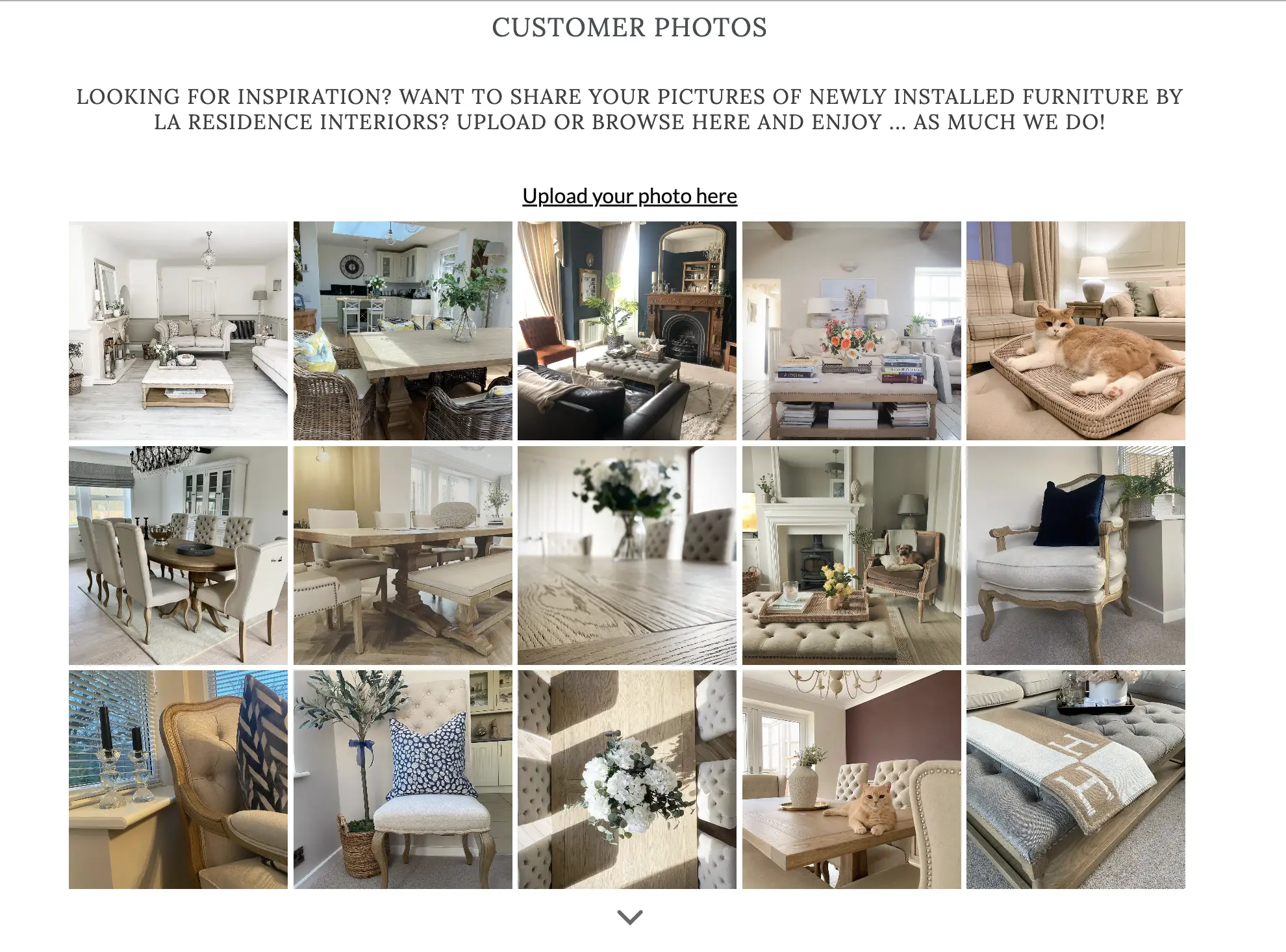
Customers share more when they can see that others did. Add the best photos to a gallery on your homepage or a customer photos page, and tag products so each photo also appears on its product page. Nothing is published until you add it, so you choose every photo shoppers see. A short thank-you when you feature someone's photo also makes them more likely to share again. Add customer photos to your product pages.
To keep up without checking every day, turn on the email in Settings → Notifications. It goes out on Mondays, Wednesdays and Fridays when there are new customer uploads, Instagram tags, mentions or hashtag photos.
Frequently asked questions
When should I ask customers for photos?
After the order has arrived and been used, usually one to two weeks after delivery. Asking at checkout is too early: they don't have the product yet.
Do customers need Instagram to share a photo?
No. An upload link works for anyone, with no social account. Instagram and TikTok are extra sources for customers who already post there.
Should I offer a discount for photos?
It can help, but it isn't required, and the chance to be featured is often enough. If you do offer one, give it for any photo a customer sends, not only positive ones.
Are the photos customers send published automatically?
Not in Socialphotos. Uploads and social posts wait for you to review them, and only the ones you add to a gallery appear on your store.
Start with one request
Create an upload link, add it to your post-purchase email, and put the same link on a packaging insert. After a few weeks, add the best photos to a gallery and see which placement brought the most.
See a live gallery · Compare all content sources · Compare plans