

Analytics
Introduction
Socialphotos Analytics helps you understand how shoppers interact with your UGC galleries. Use it to answer questions like:
- Are people viewing and clicking my UGC?
- Which UGC drives shoppers to product pages?
- Are my shoppable galleries getting product clicks?
Analytics works for UGC from all sources (Instagram, Customer Uploads, Upload Pages, and Bulk Uploads), as long as the gallery is embedded on your Shopify storefront.
Overview
The Overview page shows your key engagement metrics at a glance. Use it to quickly spot whether shoppers are interacting with your galleries and shoppable content.
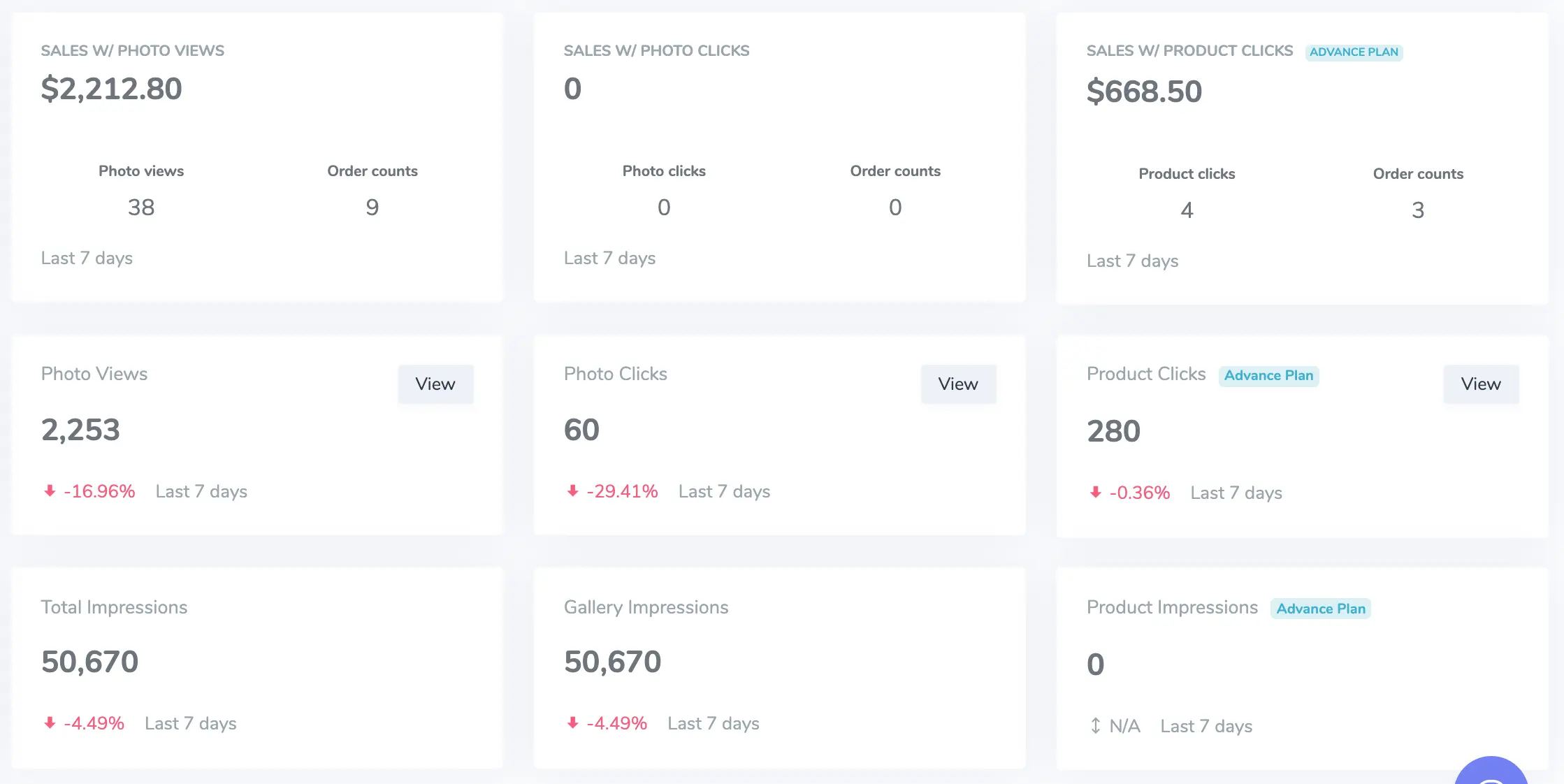
Photo Views and Photo Clicks
These metrics tell you how many times shoppers interacted with UGC items in your galleries.
What it means
- Photo Views = how many times shoppers opened or viewed a UGC item from a gallery.
- Photo Clicks = how many times shoppers clicked through from a UGC item to an external link (for example the original Instagram post or a submission link, when available).
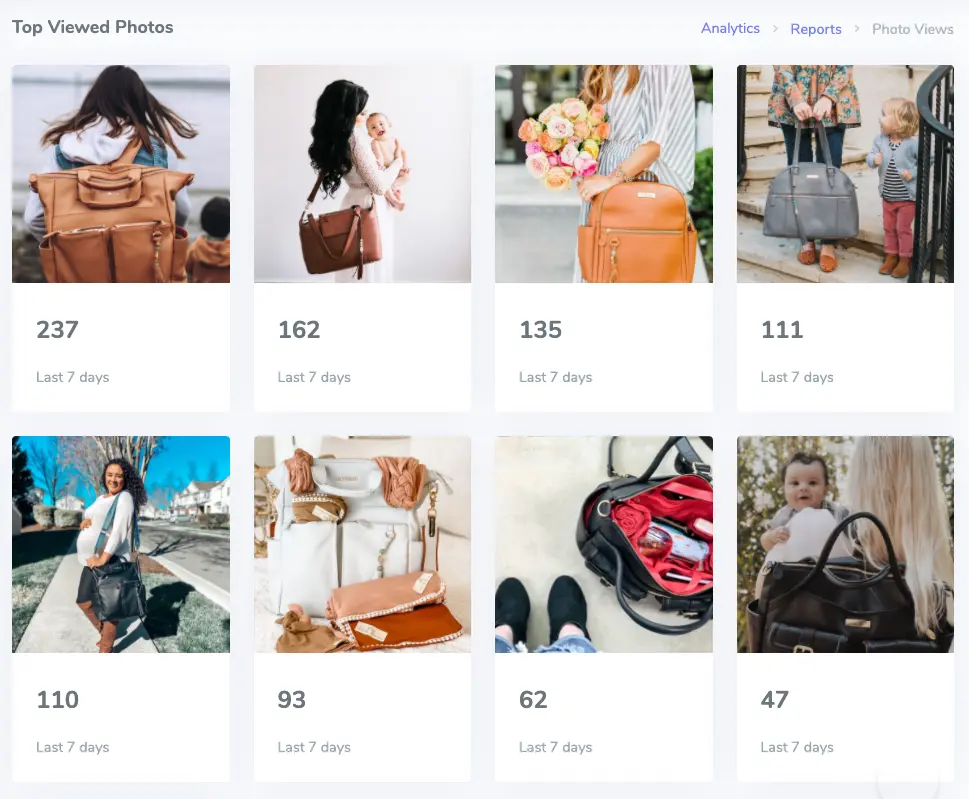
Product Clicks
Product Clicks measures shopping intent from UGC. It counts when a shopper clicks a product from within the UGC viewer (for example under “IN THIS LOOK”), and then goes to that product page.
What this usually means
- If you see Product Clicks, your UGC is effectively shoppable.
- If Product Clicks are low, you may need to tag more UGC with products.
Troubleshooting
I see 0 views or 0 clicks
- Make sure the gallery is embedded on your Shopify storefront (Theme editor → Add block → Apps → Socialphotos).
- Make sure you are checking your live storefront, not just the preview.
- Give it time: analytics updates after shoppers interact with the gallery.
I want more Product Clicks
- Tag more UGC with products using Tag Product. Tagged UGC becomes shoppable anywhere it appears.
- Make sure your galleries have enough visible UGC items (avoid empty galleries).
If you are just getting started, begin with: connect a UGC source → add UGC to a gallery → tag products → then review analytics.