How to show Instagram posts your brand is tagged in on Shopify
· By the Socialphotos team
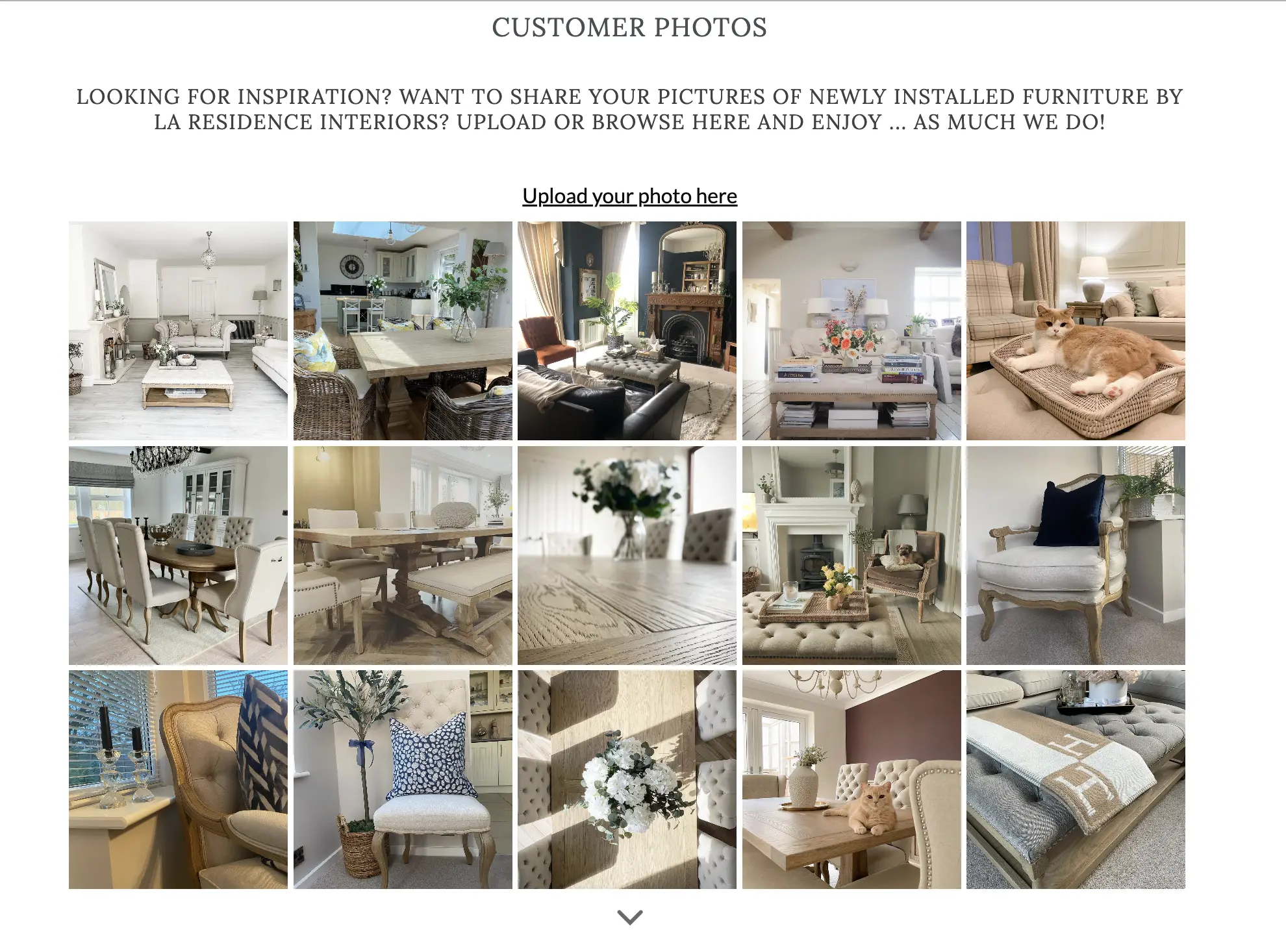
When customers tag your account in their Instagram photos, they show your products in real life, in their own words and settings. Instagram keeps these posts under the Tagged tab on your profile, but your Shopify store doesn't show them by itself. You need an app that can read the photos you're tagged in through Instagram, so you can choose which ones to feature.
The workflow: connect your Instagram account, review the posts you're tagged in, ask the customer before you feature a post, and add the ones you choose to a gallery on your store.
We build Socialphotos, a customer photo gallery (UGC gallery) app for Shopify. Tagged posts are available on every Socialphotos plan. This guide uses Socialphotos for the steps.
Tagged posts, mentions, and hashtags
Customers can point to your brand on Instagram in three ways, and apps treat each one separately:
| Type | What the customer does | Where it appears in Socialphotos |
|---|---|---|
| Tagged post | Tags your account on the photo itself. It shows under the Tagged tab on your profile. | Instagram → Tags |
| Mention | Writes @yourbrand in a caption or comment. | Instagram → Mentions |
| Hashtag | Uses a hashtag you track, such as your brand campaign tag. | Instagram → Hashtags |
Tagged posts are the most reliable of the three. Instagram doesn't let apps fetch mentions or hashtag posts from before you connect, and it limits how many hashtags you can track.
What you need
- An Instagram Business or Creator account connected to a Facebook Page. Instagram only shares tagged posts with apps through professional accounts.
- A gallery installed in your Shopify theme, such as the UGC Page Gallery block on your homepage or a dedicated page.
If you only want a few specific posts, you don't need to connect anything: paste the link to any public Instagram post in Instagram → Links. See both ways to bring in Instagram content.
Show tagged posts on your store, step by step
- Connect Instagram. In Socialphotos, open Settings → Instagram, select Connect Your Instagram, and choose the Instagram account and its Facebook Page.
- Review the posts you're tagged in. Open Instagram → Tags. Nothing is published automatically; you see the posts first.
- Ask before you feature a post. Comment on the post or send the customer a direct message asking whether you can feature it on your store, and keep their reply.
- Add it to a gallery. Select Add To Gallery on the posts you want, and choose the gallery. A gallery can mix tagged posts with customer uploads and your own photos.
- Show it on product pages (optional). On Advanced or Premium, select Tag Product so shoppers can open the product from the photo, and so the post appears in the UGC Product Gallery on that product's page.
- Get notified about new tags. In Settings → Notifications, turn on the email for new Instagram tags, mentions, hashtags and customer uploads. It goes out on Mondays, Wednesdays and Fridays when there's something new.
Instagram connections expire every three months. Socialphotos emails you before yours expires so you can reconnect.
Get more customers to tag you
- Show your handle where customers look after they buy: a packaging insert, the order confirmation, or a post-purchase email.
- Feature tagged photos in your gallery, so customers can see that tagging you can get their photo on your store.
- Many customers won't post on Instagram at all. Give them an upload link too, so they can share a photo without posting it. Collect photos after purchase.
Limits to know
- Private posts, removed posts, and restricted content aren't available to apps.
- Instagram may block reels that use copyrighted audio.
- Video and reels show in Socialphotos galleries on the Premium plan.
Frequently asked questions
Which Socialphotos plan includes tagged posts?
All of them, from Basic. Tagging products in photos and product-page galleries need Advanced or Premium, and video display needs Premium.
Will tagged posts appear on my store automatically?
No. Tagged posts wait in Instagram → Tags until you add them to a gallery, so you choose every photo shoppers see.
Can I show a post I wasn't tagged in?
Yes. Paste the link to any public Instagram post in Instagram → Links, with the creator's permission. No Instagram connection is needed for that.
Why don't I see older mentions?
Instagram doesn't let apps fetch mentions or hashtag posts from before you connected your account. Tagged posts are the more reliable source.
Start with the posts you're already tagged in
Connect Instagram, open Instagram → Tags, and pick a handful of strong photos for one gallery. Check the result on your phone, then add more as new tags come in.
Connect your Instagram account
See a live gallery · Compare all content sources · Compare plans